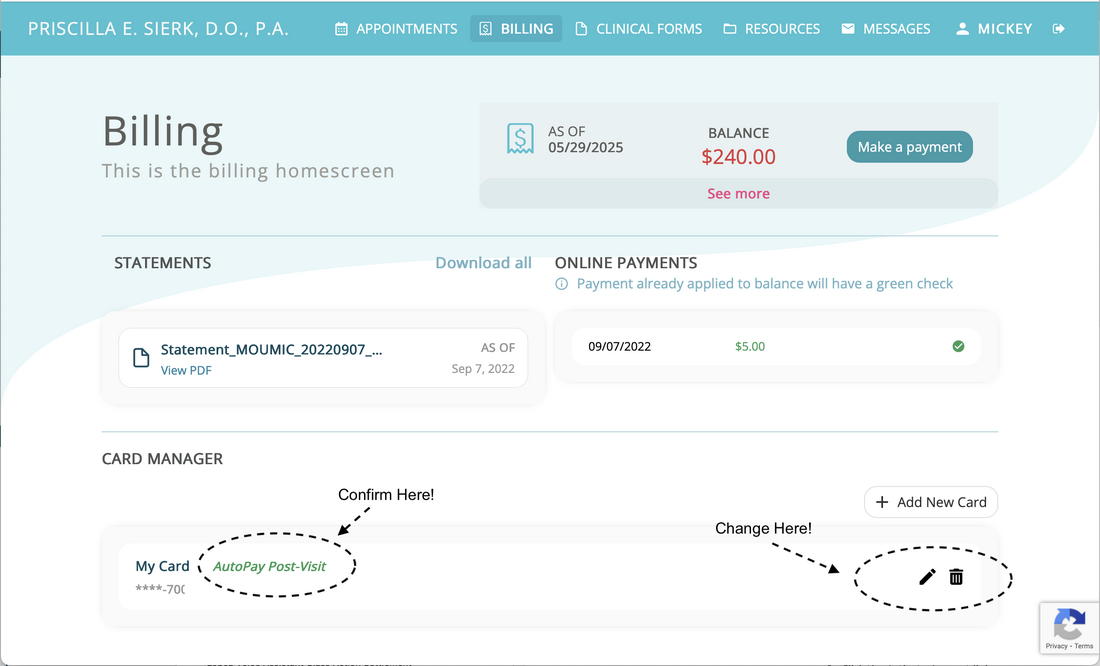
AutoPay Setup
AutoPay simplifies the payment process by automatically charging your credit card either immediately following your visit or after insurance processing is complete. You'll receive an email receipt for each transaction.
How to Enable AutoPay
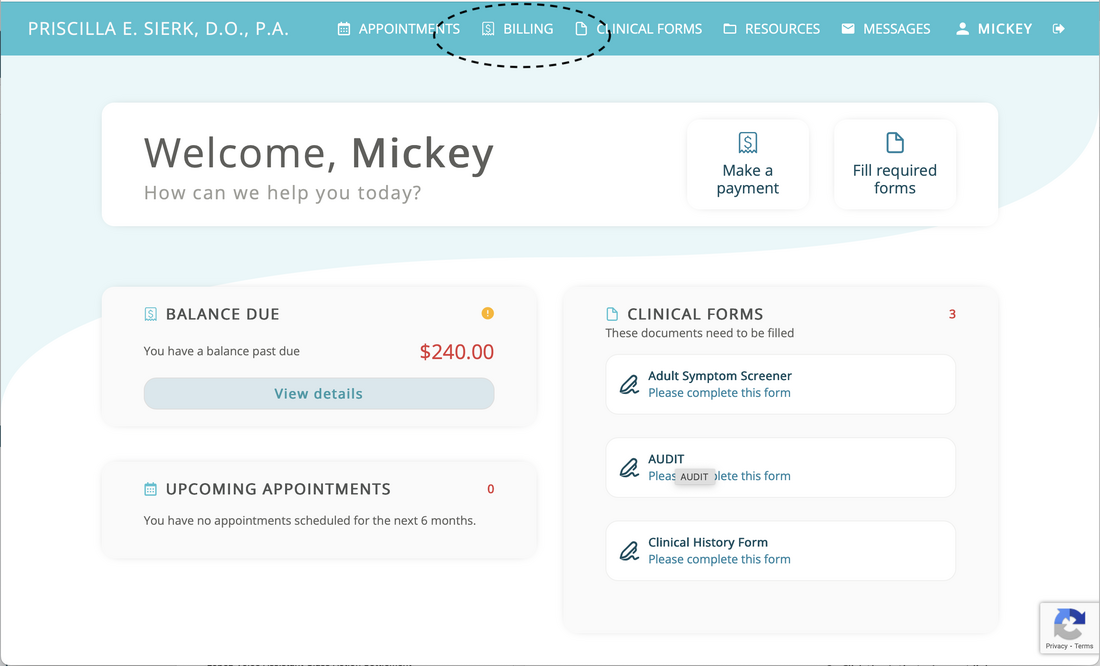
- Log in to the patient portal
- Select Billing from the top menu
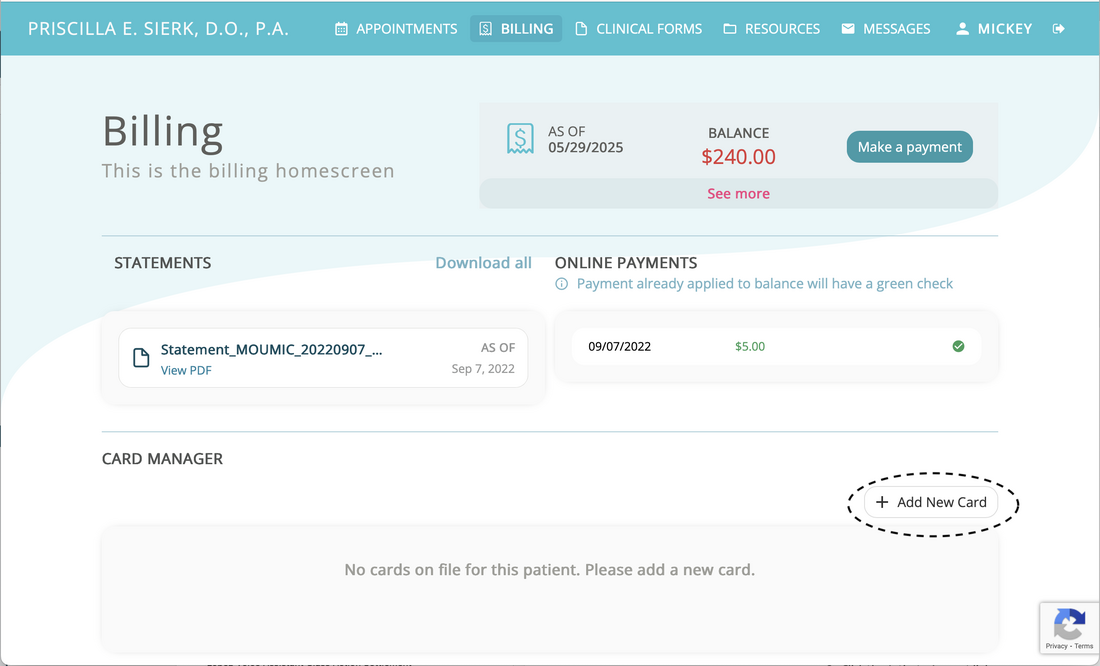
- In the Card Manager section, click "Add New Card" (or edit an existing card)
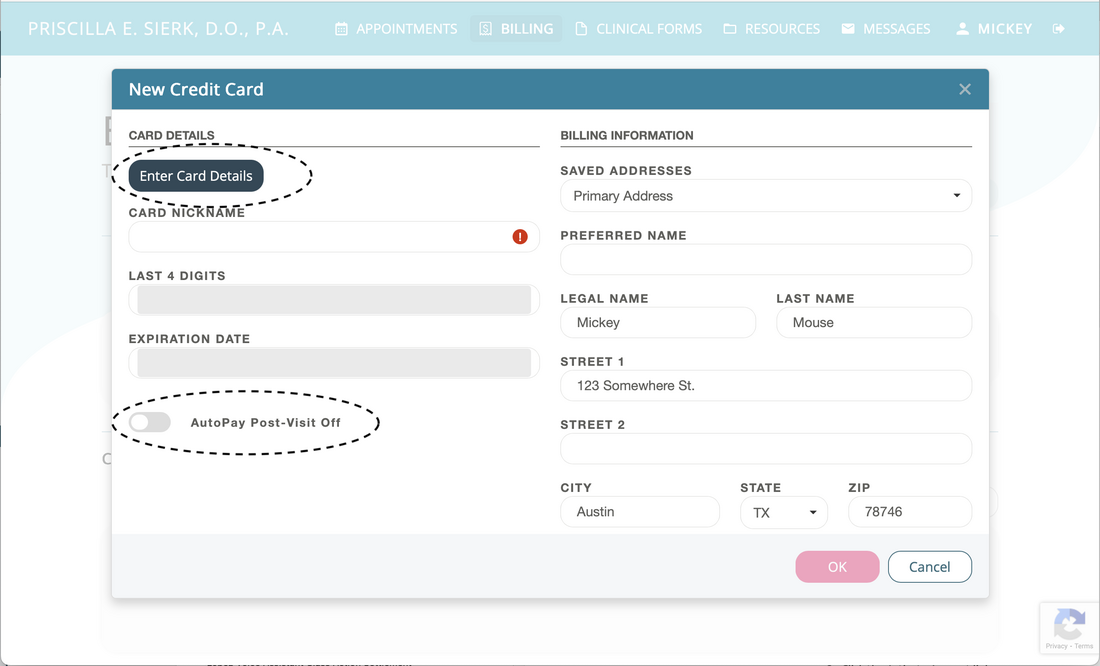
- Enter your card details and select "AutoPay Post-Visit"
- Save your changes
You can modify or remove AutoPay at any time by unchecking the AutoPay option in Card Manager. You can also authorize different credit cards using the same process.
Security
Your card information is securely stored by our payment processor. Our office does not have access to your full card number—we only see an authorization token and the last four digits of your card.
Need an itemized statement with CPT codes? Contact our office.
Step-by-Step Screenshots
Step 1: Select Billing from the top menu
Step 2: Click "Add New Card" in Card Manager
Step 3: Enter card details and select "AutoPay Post-Visit"
Step 4: Confirm your changes